Item Picker for JIRA by Onenpro
Item Picker for Jira is a custom field type developed using Forge that allows you to select and manage relationships between Jira issues in a flexible and configurable way.
Index
Overview
Unlike the native issue linking system, this solution takes a field-based approach, where each field instance can define its own behaviour, filtering logic and visual configuration. This allows you to model different types of independent and reusable fields that link issues according to the constraints required by the administrator.
Key Concept
Each Item Picker field stores a collection of references to Jira issues and displays them within the issue view. The behaviour of each field is fully configurable, including:
- Which issues can be selected (using JQL filters)
- Whether multiple selection is allowed or not
- How the selected issues are displayed
- Whether the selectable issues are limited to those the user can see, or all issues
Configuration is managed at field level, allowing different teams or projects to tailor the behaviour to their specific needs.
Key features
- Dynamic issue selection based on JQL queries
- Configurable display options (key, summary and status)
- Support for single or multiple selection
- Visual customisation via colour configuration
- Bulk configuration across multiple fields
- Integration with Jira link types
Use cases
Some typical scenarios where this field is useful:
- Manage related issues without relying on native issue links
- Defining custom relationship types by project or issue type
- Restricting issue selection according to specific rules (JQL)
- Implementing lightweight dependency tracking within fields
Design approach
The application follows a configuration-centric architecture, where each instance of the field encapsulates its own behaviour. This is supported by a structured configuration model and a validation layer that ensures data integrity.
Features
This section describes the main features of the Item Picker field, as well as the available configuration options and their impact on the field’s behaviour.
Selecting issues
The field allows you to select one or more Jira issues, which will be stored as part of the field’s value.
- Each issue is identified by its key
- Additional data (summary, status) is retrieved dynamically for display
- The selection can be limited using filters
JQL filter
Allows you to enable or disable the JQL filter to define a JQL query that restricts the issues that can be selected. If the JQL filter is disabled, it performs a search at project level:
project = [issue project]
If enabled, a text field appears, allowing you to construct custom queries (e.g. “open bugs only”).
- Configured at field level
- Allows you to tailor behaviour by project, issue type, status, etc.
Example:
project = ABC AND status != Done
Single or multiple selection
Controlled via the property.
Allows the same field type to be reused for different use cases.
- false: only one issue is allowed.
- true: allows multiple issues to be selected.
Execution as a user or as an app
Controlled via the asApp property.
- Defines the execution context for certain operations (e.g. data access)
- Helps avoid permission issues in restricted environments
Display options
This field allows you to configure which information is displayed in the issue view.
These options can be freely combined (minimum 1) to adjust the amount of information displayed.
- ShowKey: Displays the issue key (e.g. PROJ-123)
- ShowSummary: Displays the issue summary
- ShowStatus: Displays the status using a lozenge-shaped visual component
Colour settings
This field allows you to define a visual colour associated with the rendered issues.
- Used for the container’s background and border
- Improves differentiation between different fields in the UI
Available colours
- No colour
- Blue
- Yellow
- Grey
- Red
- Green
Relationship type (linkType)
Allows you to associate the field with a Jira link type.
- Facilitates conceptual integration with the issue linking system
- Can be used to represent specific relationships (dependencies, blockers, etc.)
Bulk configuration
From the administration page, changes can be applied to multiple fields simultaneously.
- Multiple field selection
- Application of common configuration This maintains consistency across fields and reduces operational effort.
Default values
Each field is initialised with a default configuration that guarantees valid behaviour, ensuring the field is usable from the moment it is created.
- No custom JQL
- Run as user
- Single selection
- No JQL filter
- Showing key
- Showing name
- No colour
Admin Guide
This section describes how to manage and configure Item Picker fields from the administration interface.
Configuration is carried out at field level, allowing each instance to behave independently.
Default field
When the application is installed, a single field appears on the admin page named “Default settings”.
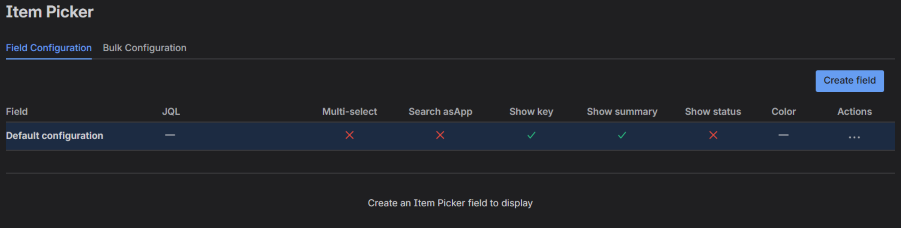
This is not an actual field; it is a master setting where default values are centralised.
This setting automatically applies to all fields:
- Created without custom configuration
- Reset to default values
Field Management
From the administration page, you can perform the following actions.
Create a field
Allows you to create a new instance of the Item Picker field.
The following are defined during creation:
- Name (required)
- Description (optional)
- Custom settings (optional)
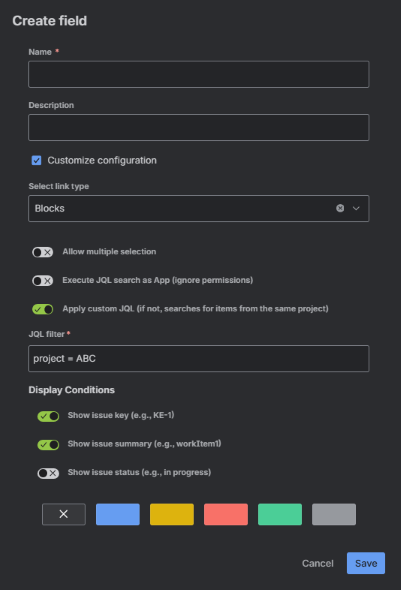
If custom settings are disabled, the field will use the default values.
Edit a field
Allows you to modify the settings of an existing field.
- Accessed from the fields table
- Opens a modal with all configurable options
- Changes are applied after saving
Delete a field
- Deletes the field and its associated settings
- Requires prior confirmation
Restore default settings
Allows you to restore the field’s initial values.
- Custom settings are removed
- The field is configured with the values from the Default Settings field
Field-specific settings
Each field can be configured independently using the following properties.
For more information on the properties: Features
JQL filter
Allows you to enable or disable the JQL filter to define a JQL query that restricts the issues that can be selected.
- Entered as free text
- Validated before saving
For documentation on JQL: what-is-jql
Example:
project = IPT AND status != Done
If the JQL filter is disabled, it performs the search at project level: project = [issue project]
Multiple selection (isMulti)
Controls whether the field allows more than one issue to be selected.
- Enabled → multiple issues
- Disabled → a single issue
Execute as app (asApp)
Defines the execution context, affecting permissions and data access.
- Enabled → operations as app
- Disabled → operations as user
Bulk configuration
The application allows you to apply changes to multiple fields simultaneously.
Field selection
You can select multiple fields from a list.
Quick options:
- Select all
- Deselect all
Configurable settings
Use the checkboxes to indicate which properties to configure.
Same configuration system as the individual one.
Applying changes
- Changes are applied to all selected fields
- The changes to be applied are merged with the existing configuration
Configuration validation
Before saving, the configuration goes through a validation process:
Basic frontend validation (structure, required fields)
Full validation in the backend:
- JQL syntax
- Configuration consistency
- Prevention of invalid states
If the configuration is invalid:
- It is not saved
- An error is displayed to the user
Example of use
This tutorial provides a step-by-step guide on how to create, configure and manage an Item Picker field from the administration interface.
Accessing the administration page
- Go to Jira settings
- Navigate to the application section
- Open the Item Picker administration page
Creating a new field
- Click the ‘Create field’ button
- A creation modal will open
Fill in the basic details
- Name (required)
- Description (optional)
- Allow custom configuration
Save the field
- Click Save
- The field will appear in the table
Configure a field
- Locate the field in the table
- Click on Edit
Available settings
Within the modal, you can configure:
- Link type
- Multiple selection
- Run as app
- JQL filter
- Show key
- Show summary
- Show status
- Colour
Reset to default settings
- Open the field’s actions menu
- Select Reset settings
- Confirm the action in the modal that appears
Result
- Custom settings are removed
- The field reverts to default values
Delete a field
- Open the actions menu
- Click Delete
- Confirm the action in the modal that appears
Result
- The field is completely deleted
- The action is irreversible
View the result in an issue
- Go to a project’s settings
- Go to the Fields tab
- Add the field you created to the project
- Go to the Work types tab
- Drag the new field to the desired location
- Save the changes
- Return to the project and select an issue
- 8. The field is ready to use